
Fast Accounts allows you to add multiple print templates in both
In the Sales and Purchases Printing Sections, you will be able to add/customise the templates for the following
Go to Settings ⇢ Sales Printing ⇢ Sales Invoice (SI)
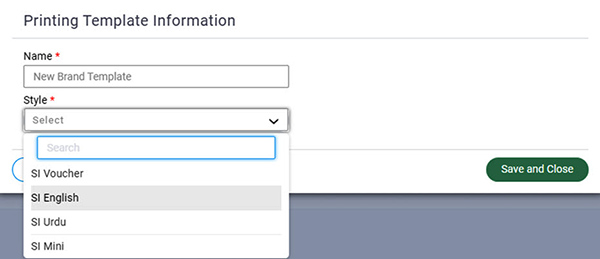
This will open the existing template listing. Select “Add New”, on the next screen select the template Name and choose a base style. Press Save and Close and a new template will be added to the list.
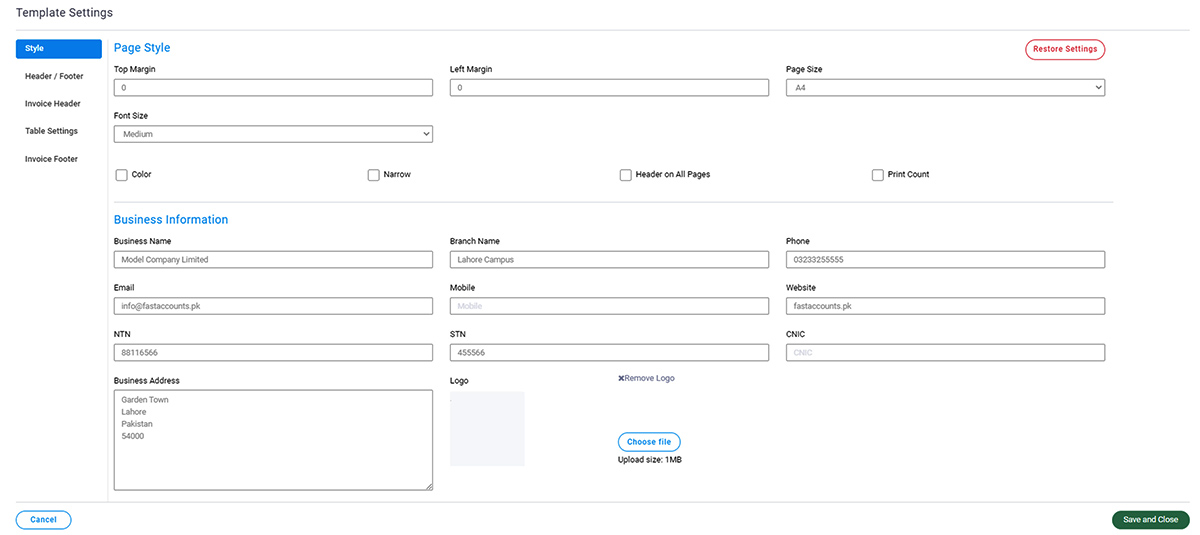
From the Template List select “Edit” to customise the template. Once in Edit mode, the first option is “Style”, select the relevant information also update the Business Information for this template. Keynote: When saving business information uncheck “Update All Printings” if you have separate business information on print templates. In addition, Print Count allows you to print water mark for “Original” and “Duplicate”, first print will be marked as “Original” and any additional prints will be “Duplicate”.
In the header and footer tab, select how the business information is printed on the template, also add a footer.
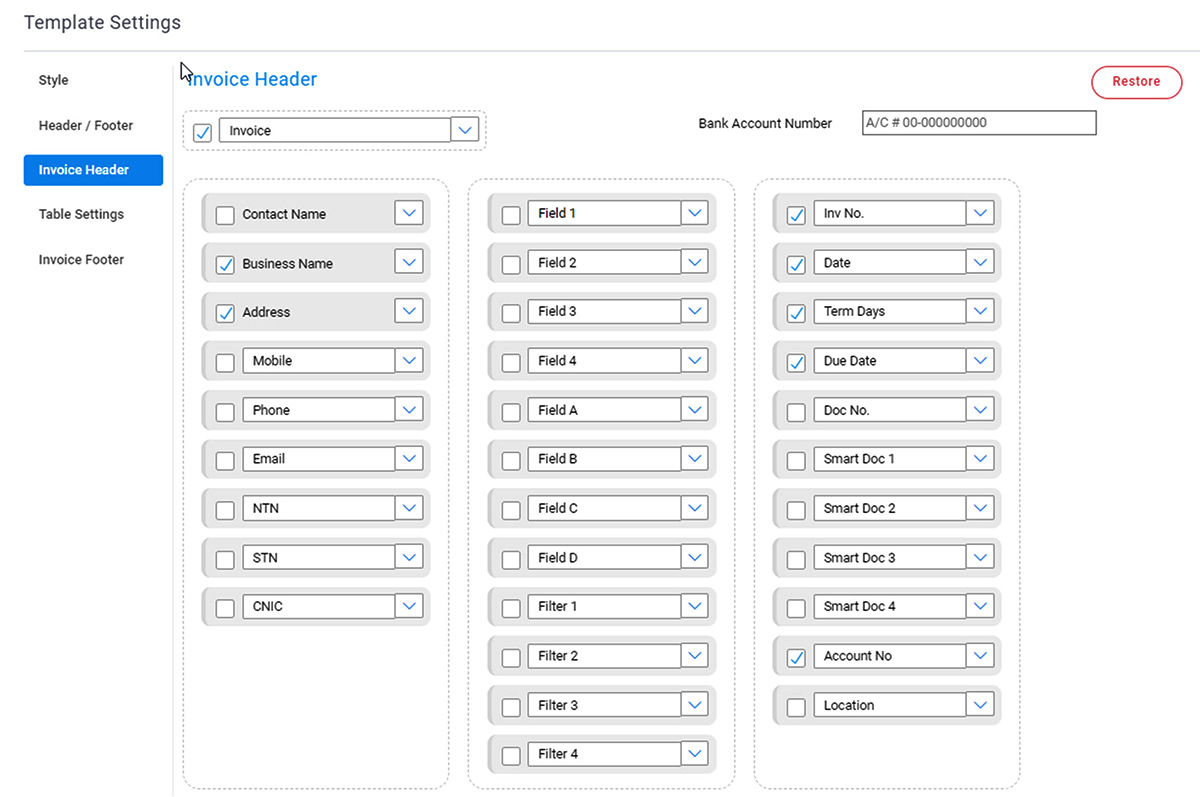
In the Invoice header tab, choose the information about the customer and the invoice. Drag and drop the fields in the relevant column and change font.
In Table Settings, all fields related to products and services in the invoice are available.
Lastly, Invoice Footer gives you the choice to print totals, unit summaries and other key information of your choice etc.
On each tab “Restore” button allows you to revert all the customisation and start again.
On the list, you can set a Default template, make it inactive or delete it.

When you add/edit sale invoices, you will have the option to select the printing template from the list. The default template will be pre-selected.
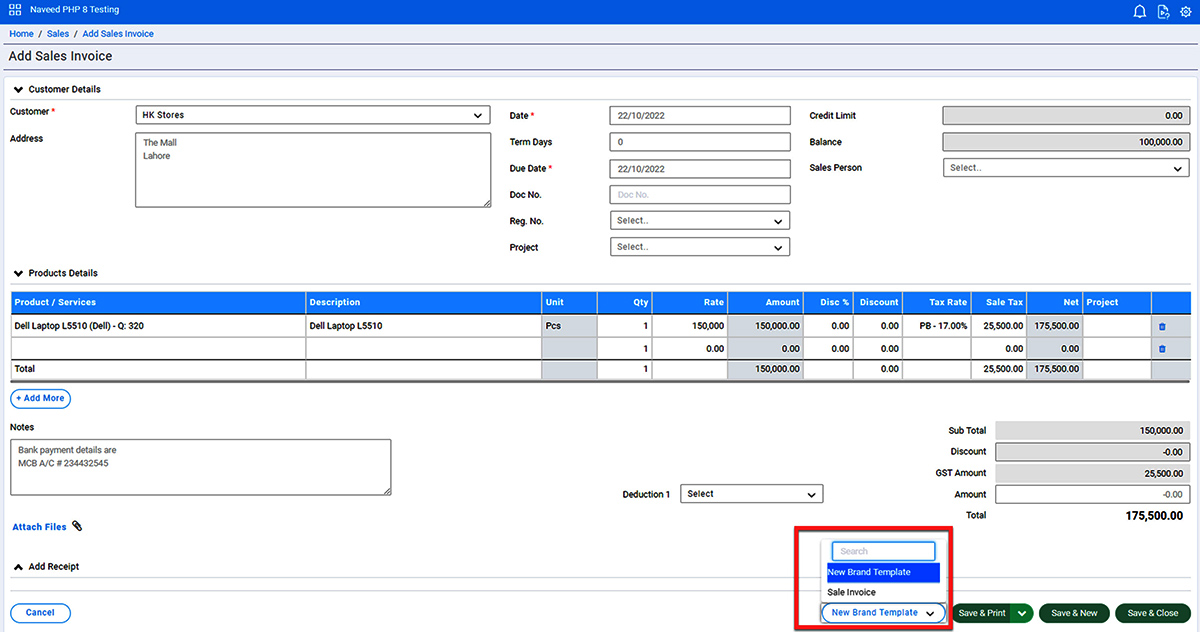
All printings from the Action Menu will always be printed on the default template.
FastAccounts has become the First choice of Accounting software in Pakistan.